
Window Switcher is an open-source desktop app that creates small always-on-top preview windows for selected applications and lets you switch between them quickly.
It is designed for multibox and multi-client workflows without modifying the target applications, with support for floating previews, filtering, renaming, diagnostics, and global keybinds.
Inspired by eve-o-preview, the project focuses on broader use cases and cross-platform support.
- Display floating previews for selected windows
- Bring the original window to foreground by clicking a preview
- Trigger a specific client, or cycle to the next/previous selected client, with global keybinds
- Optionally focus windows on mouse hover
- Filter displayed windows with whitelist prefixes
- Exclude windows with blacklist entries
- Temporarily hide a window for the current session (temp blacklist)
- Rename a window title directly from the UI
- Persist floating window size/position per window
- Tune preview behavior, sizing, decorations, and highlight color from Settings
- Open the app data folder and inspect runtime/OS/dependency status from the About window
Filters: manage whitelist prefixes and blacklist entries.Keybinds: assign global shortcuts to built-in actions or specific client targets.Settings: control preview behavior, movement, sizing, decorations, startup mode, and highlight color.Help > About: inspect runtime information, preview mode, config path, and Linux dependency status.File > Open data folder: open the persisted application data directory directly.
- ✅ Windows
- ✅ Linux (X11 + Wayland)
- ⏳ macOS (not implemented)
- 🖵 Fullscreen applications not supported
- ⌨️ Linux global keybinds require access to
/dev/input/event*and/dev/uinput; previews still work without that access
- Windows: native DWM thumbnail previews are used in floating windows, and global shortcuts use a low-level keyboard hook.
- Linux (X11): screenshots are captured via ImageMagick
import, and window actions usewmctrl. - Linux (Wayland): PipeWire preview is used when dependencies are available; otherwise it falls back to screenshot mode.
- Linux global keybinds: evdev devices are read and forwarded back through
uinput, so matching shortcuts can be intercepted without swallowing unrelated typing.
- Launch Window Switcher.
- Open
Settings > Filters, then use thePrefixestab to add whitelist entries. - In the same
Filterswindow, use theBlacklisttab to exclude titles you do not want to see. - Floating previews are created for matching windows.
- Open
Settings > Keybindsand assign shortcuts toNext client,Previous client, or a specific client target. - Click a preview to focus the original window, or enable
Focus on hover. - Right-click a preview (or list item) to blacklist, temp-blacklist, or rename a window.
v0.8.0
- Add a window to configure keybinds
| Keybinds window |
|---|
 |
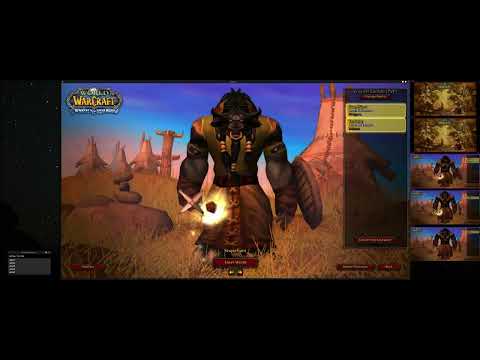
🎥 Example with 5 World of Warcraft clients, on Arch Linux KDE (Wayland)
v0.7.0
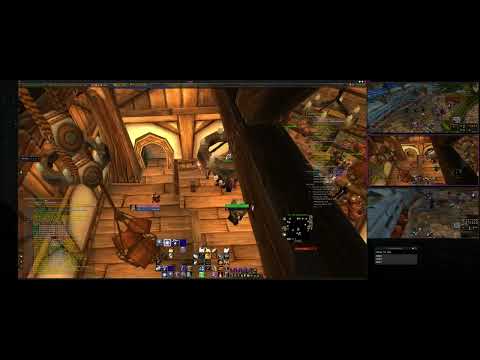
🎥 Example with 3 World of Warcraft clients, on Arch Linux KDE (Wayland)
v0.4.0
- Add a window to configure settings
- Add the ability to rename windows
- keep track of different settings for clients like World of Warcraft
| Main window | Prefix window |
|---|---|
 |
 |
| Live preview | Settings / Rename |
|---|---|
 |
  |
🎥 Example with Eve Online, World of Warcraft and Project Gorgon clients :

- Runtime: Windows or Linux
- Source build: .NET SDK 10 (
net10.0) - Linux preview/focus features require external tools (see Linux dependencies below)
Download the latest release here
Windows
- Download and run the
WindowSwitcher-setup-*.exeinstaller from the releases page.
Linux
- Download the
*.AppImagefrom the releases page. - Make it executable and run it:
chmod +x WindowSwitcher-*.AppImage./WindowSwitcher-*.AppImage
From the repo root:
- Build:
dotnet build Window-Switcher.sln - Run:
dotnet run --project src/WindowSwitcher/WindowSwitcher.csproj - Test:
dotnet test src/WindowSwitcher.Tests/WindowSwitcher.Tests.csproj
The application version is centralized in ./Directory.Build.props via WindowSwitcherVersion.
Build resources used by the packaging scripts now live under:
./scripts/assets/installer/./scripts/assets/packaging/linux/
Generated build outputs now live under:
./scripts/artifacts/
Prerequisite: install NSIS (so makensis is available).
From the repo root:
pwsh ./scripts/build-installer.ps1
The NSIS definition used by these scripts is stored in ./scripts/assets/installer/WindowSwitcher.nsi.
The script reads the version from ./Directory.Build.props by default. Use -Version only to override it for a specific build.
(Works in Windows PowerShell too: powershell ./scripts/build-installer.ps1.)
From Linux/macOS, you can also use:
./scripts/build-installer.sh
From the repo root:
./scripts/build-appimage.sh
The AppImage packaging resources used by this script are stored in ./scripts/assets/packaging/linux/.
The script reads the version from ./Directory.Build.props by default. Use -v only to override it for a specific build.
Output: ./scripts/artifacts/appimage/WindowSwitcher-<version>-linux-x64.AppImage
From the repo root:
./scripts/build-artifacts.sh
By default, this produces both:
./scripts/artifacts/installer/WindowSwitcher-setup-<version>-win-x64.exe./scripts/artifacts/appimage/WindowSwitcher-<version>-linux-x64.AppImage
You can also target a single artifact from the wrapper:
./scripts/build-artifacts.sh --skip-installerbuilds only the Linux AppImage./scripts/build-artifacts.sh --skip-appimagebuilds only the Windows installer
Prerequisites on Linux:
.NET SDKNSIS(makensis) when building the Windows installerappimagetoolinPATH, or let the AppImage script download it automatically
Make sure your system has:
wmctrl(list/focus/rename windows)- ImageMagick
import(screenshots for live preview) gst-launch-1.0+pipewiresrcplugin (PipeWire video stream)pw-dump(PipeWire node discovery and matching)gdbus(optional, only if portal fallback is enabled)
Install examples (depends on your distro):
- Debian/Ubuntu:
sudo apt install wmctrl imagemagick - Arch:
sudo pacman -S wmctrl imagemagick - Fedora:
sudo dnf install wmctrl ImageMagick
Wayland PipeWire packages (examples):
- Debian/Ubuntu:
sudo apt install gstreamer1.0-tools gstreamer1.0-pipewire pipewire-bin libglib2.0-bin - Arch:
sudo pacman -S gst-plugin-pipewire gstreamer pipewire glib2 - Fedora:
sudo dnf install gstreamer1 pipewire-gstreamer pipewire-utils glib2
- Whitelist prefixes: a window is shown when its title contains at least one configured prefix (case-insensitive).
- Blacklist: exact title matches are excluded (case-insensitive).
- Temp blacklist: hides a window by ID for the current session only.
- Drag preview windows when
Move windowsis enabled. - Resize previews when
Resize windowsis enabled. - With
Fixed size, all previews share configured width/height. - Preview position and size are restored per window key on next launch.
- The active preview highlight is updated when a preview is clicked or activated through a keybind.
- Open
Settings > Keybindsto assign shortcuts to built-in actions or to a specific client window. Next clientandPrevious clientcycle through the currently selected client set, meaning windows that match the whitelist and are not excluded by the blacklist.- Client targets are populated from currently detected windows, and previously saved targets remain available even when that window is not running yet.
- Duplicate shortcuts on the same target and conflicts across different targets are rejected by the UI.
- On Linux, keybind capture is optional but requires input-device permissions; without them, the app still runs but global shortcuts are unavailable.
Disable previewsResize windowsMove windowsFocus on hoverStart minimizedWindow decorations(Linux policy)Fixed size+Width/HeightHighlight colorApplyis mainly needed when togglingDisable previews; other values are persisted as they change
Help > About shows:
- App version
- OS / .NET runtime / architecture
- UI backend
- Config file path
- Active preview mode
- Linux dependency status
Settings are persisted to config.json under the app data folder:
- Windows:
%APPDATA%\\WindowSwitcher\\config.json - Linux:
~/.config/WindowSwitcher/config.json(typically)
The file stores:
- UI and preview settings
- Whitelist / blacklist filters
- Saved floating window positions and sizes
- Global keybind target definitions
Global keybinds are optional on Linux, but when you use them the listener needs:
- Read access to
/dev/input/event* - Write access to
/dev/uinputor/dev/input/uinput - Typically: root, membership in the appropriate input group, or custom udev rules
This project is licensed under the GPL3 License.
If you find Window Switcher useful and would like to support its development, consider buying me a coffee ☕
Your support helps keep this project alive and motivates further improvements. Thank you! 🙌
